

To stay on top of your life, one of the necessary tasks you need to do is to organise your emails. However, many business owners tend to put this off or never attempt it until they start missing out on important emails.
If you have ever been frustrated with searching and waiting on certain emails, you should whitelist the sender. This is because some email providers such as Gmail automatically separate the emails into inboxes such as “Primaryâ€, “Promotionsâ€, “Social Media†and so forth. And all email providers automatically categorise certain type of emails as spam or junk according to their algorithms, which means it’s easy to miss vital emails.
What’s a whitelist?
A whitelist is the opposite of a blacklist and it’s a list of approved or safe senders for your inbox. It’s really a fancy name for your address book or contacts list. By whitelisting, you’ll get to see emails from safe senders in your main inbox, and it will never get lost in other inboxes.
There are two ways to do this from your inbox. You can add the email address to your contact list or address book, which tells your email provider that this sender is important to you. Or, you can search for an existing email from the sender, mark it as not spam or verify they are a safe sender or a contact.
If you’re keen on hearing from us, you need to add us as an approved or safe sender. From your inbox, all you need to do is add our email address, such as [email protected] to your contacts. Below are specific instructions on how to whitelist senders on several popular email platforms, for existing senders.
Gmail
Gmail will automatically separate your emails into different inboxes such as “Primaryâ€, “Promotions†and other inboxes you have defined. If our emails are not sent to your primary inbox, locate one of our emails, and drag it into the “Primary†inbox.
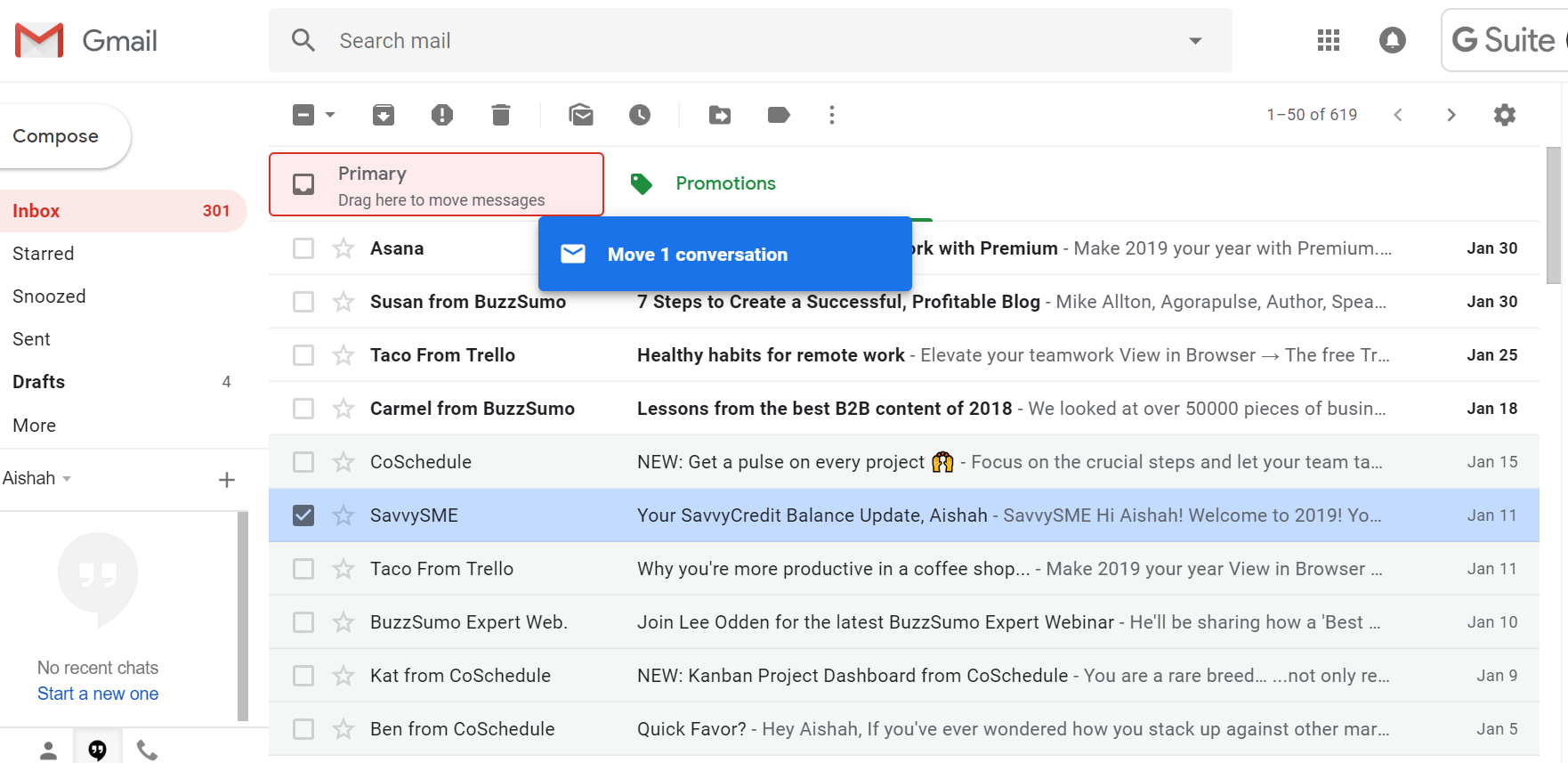
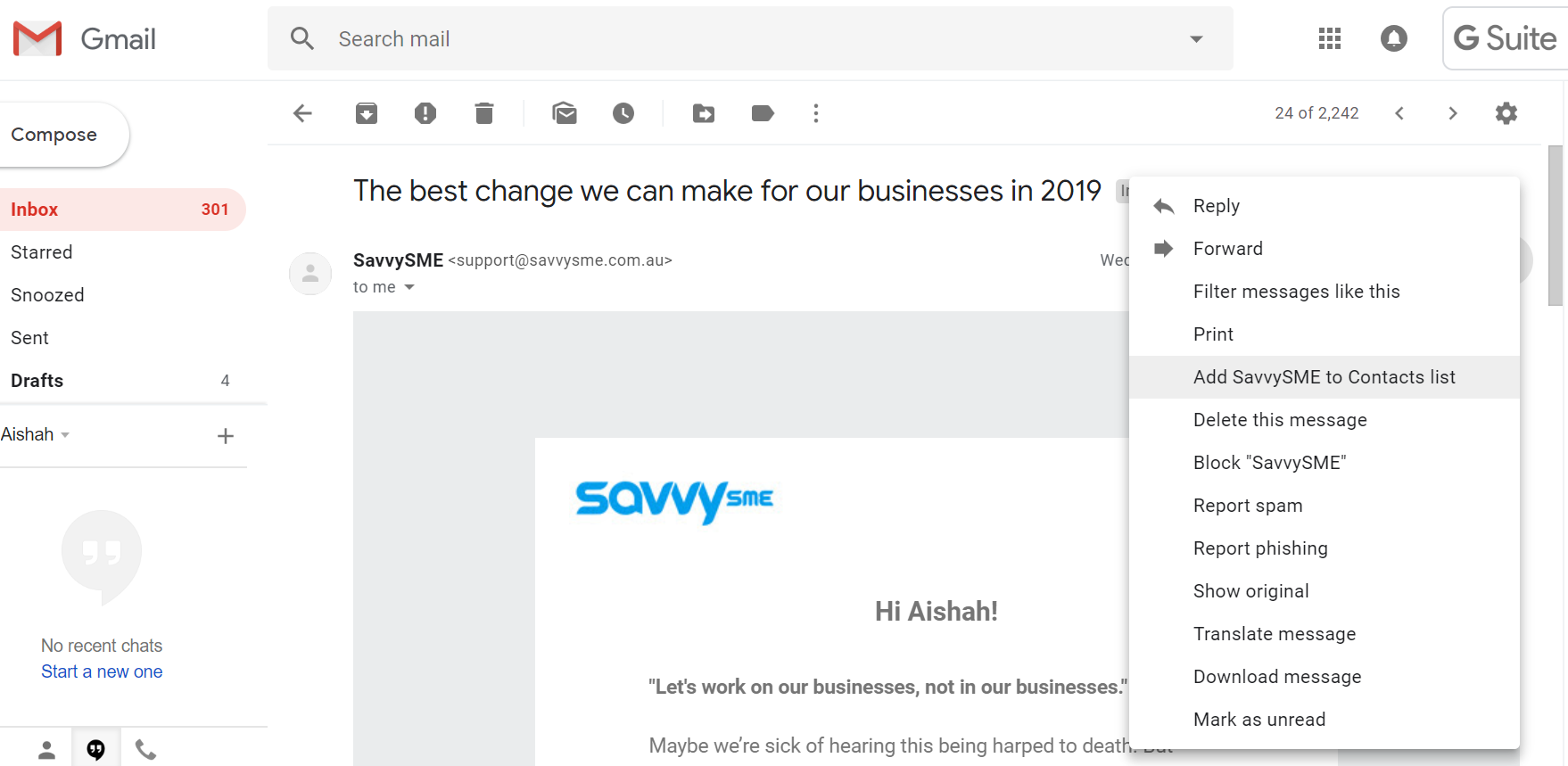
Alternatively, you can open one of our emails. Then, click on the 3-dotted icon that says “More†on the top right side of your email and select “Add SavvyKai to Contacts Listâ€.
Â
Yahoo! Mail
Unlike Gmail, Yahoo doesn’t separate your emails to a promotional tab. All you need to do is ensure that our emails don’t end up in the Spam folder. Click on the Spam after you log in to Yahoo! Mail. Select our email if it is there and select “Not Spamâ€. Alternatively, you can add our email address, [email protected]  to your contacts list in Yahoo.
Â
Outlook 201X
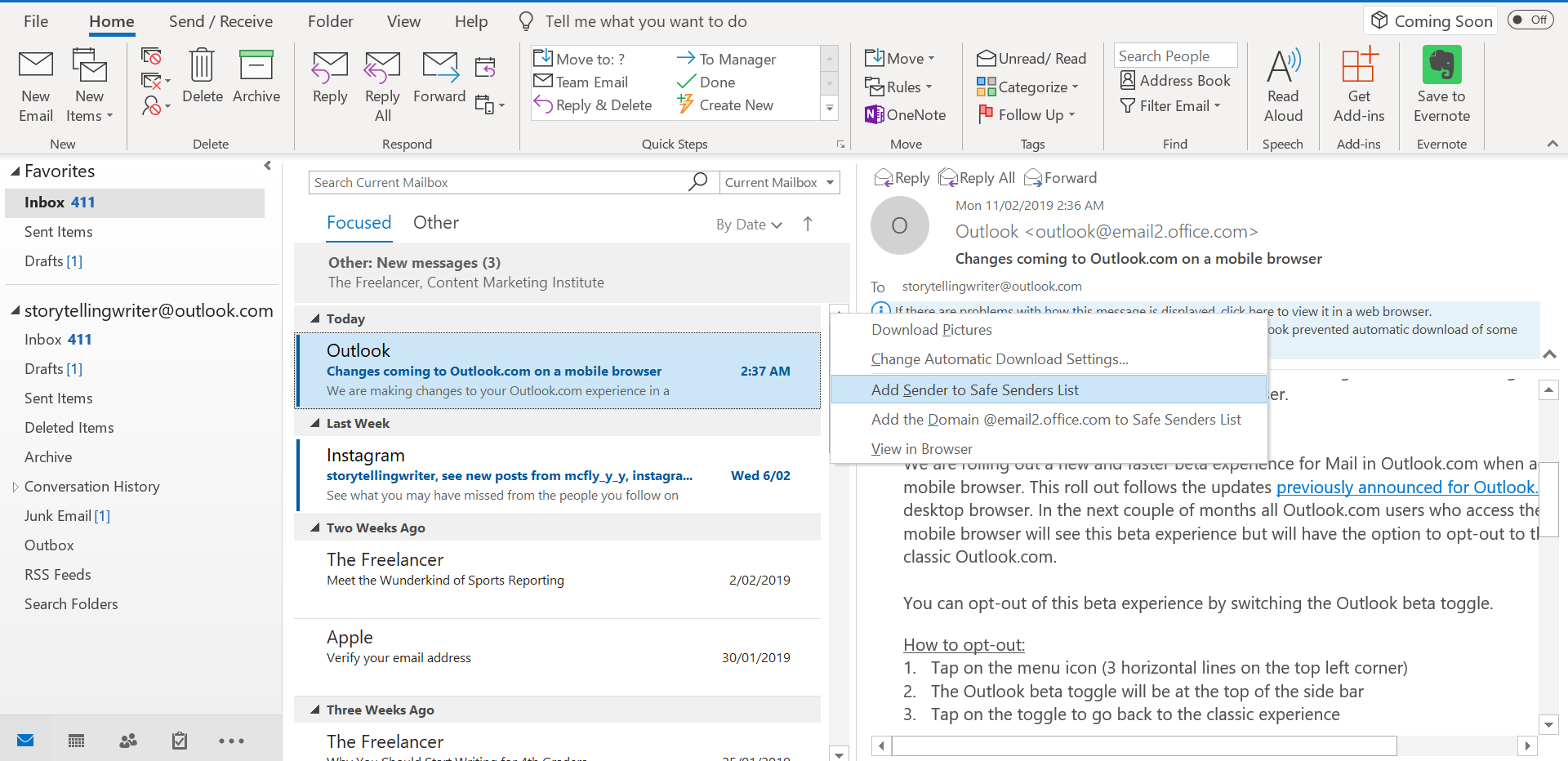
Open one of our emails, and if you see a message with the info icon before the email’s content, you need to add us to your safe senders list. Click on the message, and select “Add Sender to Safe Senders listâ€.
Â
Outlook.com
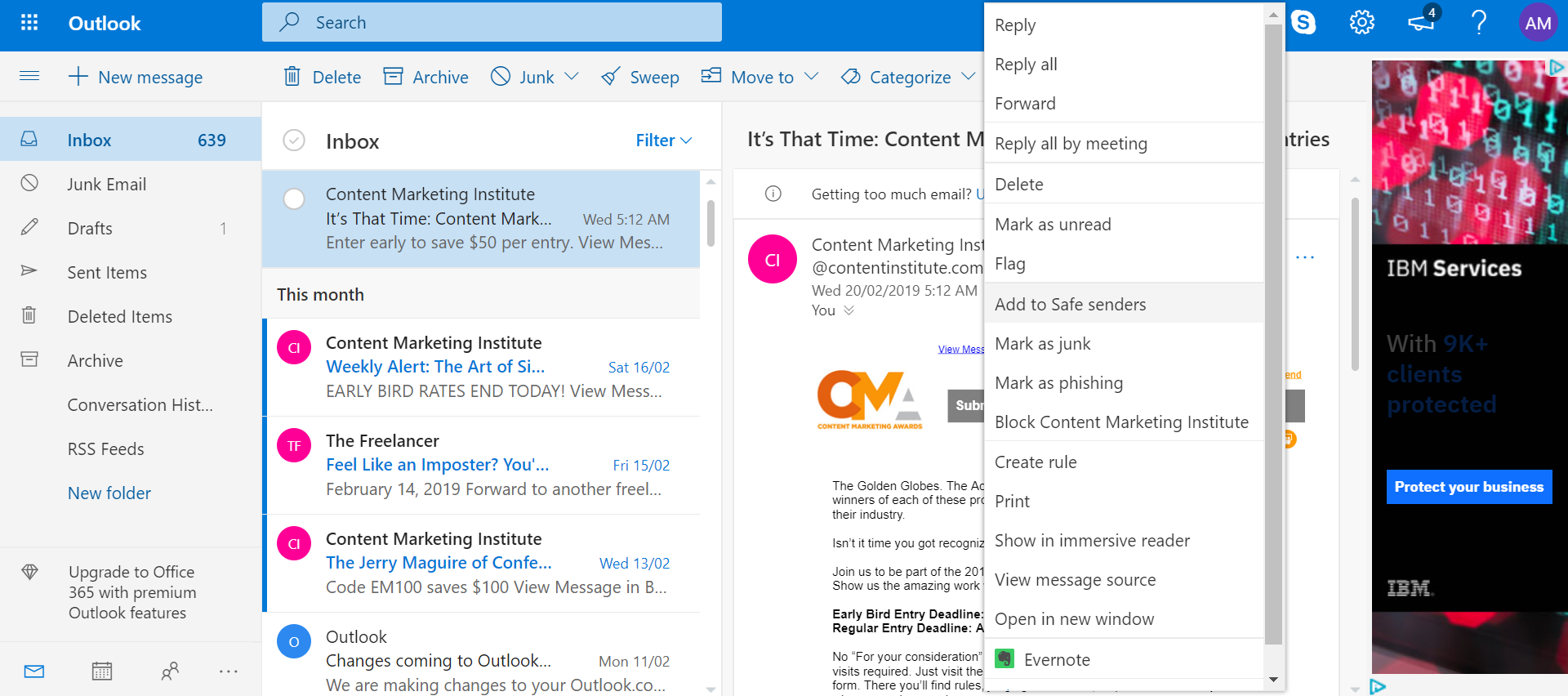
Open an existing email, click on the 3-dotted icon in the email header, and select “Add to Safe Sendersâ€. Alternatively, go to your contact list called “People†and add new contact.
Â
Apple Mail (OSX and above and iOS devices)
Find the email from the sender you want to approve of, then click on their email address in the “From†field and select “Add to Contactsâ€. You can also select “Add to VIPs†instead. VIP senders have a separate inbox that are created for them. You can go to your VIP inbox to see all your very important mails.
Â
Mozilla Thunderbird Mail
Locate the email from the sender you want to approve of, click on their email address in the “From†field, and then select “Add to Address Bookâ€
That’s it. If you have any other questions about whitelisting our emails, please feel free to contact us.
Â
Comments: (0)